Showing posts with label MultiPlug. Show all posts

"Ads by PriceMinus". How to remove them?

What is PriceMinus?

PriceMinus is an advertising program that shows you ads in browsers and pop-ups. One of these advertisements you can see in the picture below:
Ads by PriceMinus

You can see different types of advertising, such as coupons, programs to clean and speed up your system, messages about outdated Adobe Flash Player and so on. It can be very annoying, since it can overlap parts of web page. Avoid clicking these messages! 

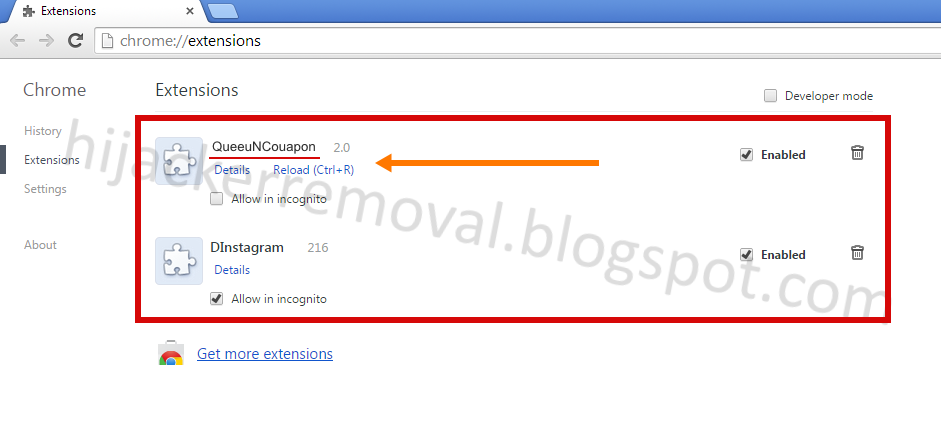
PriceMinus also installs browser extensions without your consent:
PriceMinus chrome extension

Such popular browsers as Google Chrome, Mozilla Firefox and Microsoft Internet Explorer may be exposed to the virus attack. Furthermore, home page and search engine may be changed to http://websearch.goodforsearch.info:
Chrome start page was changed without user's consent
It means that PriceMinus can falsify search results for its benefit. 

PriceMinus belongs to MultiPlug family of malicious programs and may be called by different malware scanners as:
  • Adware.MultiPlug (Gridinsoft Trojan Killer) 
  • PUP/Win32.MultiPlug
  • Win32:Adware-gen
  • ADWARE/MultiPlug.Gen4
  • Trojan.DownLoader11
  • Application.Win32.Multiplug
  • MultiPlug-FTG
  • Riskware.Win32.MultiPlug

PriceMinus can also be referred to as:
  • PriceMinus
  • PriiceMinus
  • PriceeMinus
  • PriiceeMinus
  • PricueMinus
  • etc

How to figure out that your computer 

is infected by PriceMinus?

Here are some signs that indicate that your computer is infected with PriceMinus virus:
  • you see a lot of advertising in your browsers;
  • different pop-up windows appears when you click on a web page;
  • your home page was changed without your consent;
  • your search engine was changed without your consent;
  • at least one of the following folders present on your computer: 
    • C:\Program Files\PriceMinus
    • C:\Program Files (x86)\PriceMinus
    • C:\Program Files\Yoono  Twitter  Facebook LinkedIn Youtube
    • C:\Program Files (x86)\Yoono  Twitter  Facebook LinkedIn Youtube
    • C:\Program Files\bestadblocker
    • C:\Program Files (x86)\bestadblocker
    • C:\ProgramData\iimdeknjdemgmmhmkcapgfpbcgbpcmge
    • C:\ProgramData\{2c4e5bd6-6a74-8c3d-2c4e-e5bd66a76f59}
  • at least one of the following registry items present on your computer:
    • HKLM\SOFTWARE\Classes\CLSID\{15d29aae-41f4-4eb6-9f8f-ee91a8f278a4}
    • HKLM\SOFTWARE\Classes\CLSID\{8e0a78e8-9394-4c34-b432-97c60dfb90d0}
    • HKLM\SOFTWARE\Classes\TypeLib\{EB559340-3A8F-4456-B24D-160098054EF0}
    • HKLM\SOFTWARE\Microsoft\Windows\CurrentVersion\Uninstall\{4820778D-AB0D-6D18-C316-52A6A0E1D507}
    • HKLM\SOFTWARE\Microsoft\Windows\CurrentVersion\Uninstall\{AD11DADE-C597-45D9-D8C5-1D2EB0B89613}
    • HKLM\SOFTWARE\Microsoft\Windows\CurrentVersion\Uninstall\{06B99631-BFA2-3B7A-F58B-D067C2BA59B7}
  • the following task is scheduled in your system:
    • bidaily synchronize task

    How to get rid of PriceMinus?

    Follow this guide to remove PriceMinus from your computer completely.


    Step 1.  Try to remove PriceMinus using tools of Windows operating system.


    If you have installed Windows 8, click the Start button on the screen or Windows button on the keyboard, start typing "programs and features" and select Programs and Features from the menu:
    Programs and Features
    If you have installed Windows 7, press Start button and choose Control panel: 
    Windows 7 start menu

    Look for PriceMinus, beastadblocker and Yoono  Twitter Facebook LinkedIn Youtube entries in the list of installed programs, select and uninstall them one-by-one using Uninstall button:
    Example of the list of installed programs
    Now reboot your computer and check the result. If the advertising is still present, please move to the next step.

    Step 2. Remove PriceMinus completely using Gridinsoft Trojan Killer tool

    Gridinsoft Trojan Killer is a powerful all-in-one tool aimed to protect you and your computer from dangerous software called 'malware'. It has no analogues on the quality of removing any kinds of threats. You can also take advantage of the professional Trojan Killer Support Team, which can solve your problem remotely, even if Trojan Killer has not solved your problem. *
    Please, follow the guide below to remove PriceMinus from your computer.
    • Close all your programs and browsers
    • Install Gridinsoft Trojan Killer and run it by double-clicking on the icon on your desktop: 
      Trojan Killer icon on the desktop
    • Run Standard scan:
      Scan page
    • After the scanning completed mark all items as Move to quarantine and press Apply button to remove all dangerous items from your computer. Reboot your PC if Trojan Killer asks about it:
      Scan results
    • Now you need to clean all your browsers. If you skip this step, PriceMinus still will be active in your system. Go to the Tools page and press Reset browser settings button:
      Tools page
    • Mark all the browsers you have as shown below and press Reset button:
      Final step of removal process
    • Reboot your PC and check the result
    Now your computer should be cleaned of PriceMinus

    If you still notice any signs of PriceMinus, please send your request to Trojan Killer Support Team. Specialists from Gridinsoft will help you in removing any kind of threats *


    Please notice that Trojan Killer Support service is available for registered users only. If you want to get free Trial Key, do not hesitate to contact Trojan Killer Support Team

    "Ads by WhiteDeals". How to get rid of them?

    What is WhiteDeals?

    WhiteDeals is an advertising application that shows you ads in your browsers and opens pop-up windows:
    Ads by WhiteDeals
    WhiteDeals also installs browser extensions without your permission:


    Example of WhiteDeals extension
    WhiteDeals belongs to MultiPlug family of virus programs and can be named by different malware scanners also as:
    • Adware.MultiPlug (Gridinsoft Trojan Killer) 
    • PUP/Win32.MultiPlug
    • Win32:Adware-gen
    • ADWARE/MultiPlug.Gen4
    • Trojan.DownLoader11
    • Application.Win32.Multiplug
    • MultiPlug-FTG
    • Riskware.Win32.MultiPlug

    WhiteDeals can also be named as:
    • WhhiteDeals
    • WhieteDeals
    • WhiiteDeeeals
    • WheitueDeails
    • etc

    How to figure out that your computer is 

    infected with WhiteDeals?

    Here are some symptoms that indicate that your computer is infected with WhiteDeals virus:
    • you see a lot of advertising in your browsers;
    • diffirent pop-up windows appear when you clicking on the elements of web pages. Example list of redirect addresses:
      • hXXp://search.webssearches.com
      • hXXp://yxo.warmportrait.com
      • hXXp://f54d6bf2b1.se
      • hXXps://www.favbet.com
      • hXXp://www.freelotto.com/
      • hXXp://ww12.ulayout.com/
      • hXXp://softwaresupermyuk.in/
      • hXXp://www.top-free-to-play.com/
      • hXXp://albumsuper.info/
      • hXXp://ads.adsrvmedia.net/
      • hXXp://www.quickprofitssystem.co/
      • hXXp://lp.ilividnewtab.com/
    • at least one of the following folders is present on your computer: 
      • C:\Program Files\WhiteDeals
      • C:\Program Files (x86)\WhiteDeals
      • C:\ProgramData\WhiteDeals
      • C:\Program Files\SegmentSystem
      • C:\Program Files (x86)\SegmentSystem
      • C:\Program Files\SystemProtect
      • C:\Program Files (x86)\SystemProtect
      • C:\Program Files\SystemIncrease
      • C:\Program Files (x86)\SystemIncrease
    • at least one of the following registry items is present on your computer:
      • HKLM\SOFTWARE\c8511cf1-b293-2610-9396-93ea992351e2
      • HKLM\SOFTWARE\9a4c34eb-6c9c-3b0f-0178-031d85298f84
      • HKLM\SOFTWARE\{4A0F38A9-FE55-4B89-B73F-E60FDC0F72E9}
      • HKLM\SOFTWARE\{3A7D3E19-1B79-4E4E-BD96-5467DA2C4EF0}
      • HKLM\SOFTWARE\{12DA0E6F-5543-440C-BAA2-28BF01070AFA}
      • HKLM\SOFTWARE\{12A61307-94CD-4F8E-94BC-918E511FAA81}
      • HKLM\SOFTWARE\Classes\CLSID\{66e700d4-ed69-4bd1-af8b-d229b9e255ff}
      • HKLM\SOFTWARE\Classes\CLSID\{0adf02ca-6907-424a-a0e3-d221a2345ff2}
      • HKLM\SOFTWARE\Classes\CLSID\{56cb43e2-4ad8-4529-91ff-b7fac9ba2434}
      • HKLM\SOFTWARE\Classes\CLSID\{cc7da940-494d-4cfc-a3a9-c8be4c24de77}
      • HKLM\SOFTWARE\Classes\CLSID\{5ad02348-44fd-4dd0-80cd-287c8dd45cdb}
      • HKLM\SOFTWARE\Classes\Interface\{6F650C75-C271-4DF9-B15F-18E5A0118C4F}
      • HKLM\SOFTWARE\Classes\Interface\{81652D8D-88FA-4229-9EB1-7DBB522B9669}
      • HKLM\SOFTWARE\Classes\Interface\{E534D39A-89F1-4E84-A85C-00A52A4A7D4A}
      • HKLM\SOFTWARE\Classes\TypeLib\{259F6B27-57AA-48B5-854B-B96D8FC7B3C1}
      • HKLM\SOFTWARE\Classes\TypeLib\{079E2F0F-FCA0-4163-BC82-5355B879E86E}
      • HKLM\software\microsoft\windows\currentversion\uninstall\{11F6D5AB-263F-388E-74DE-E3DECD390E3F}
      • HKLM\software\microsoft\windows\currentversion\uninstall\{44E4311D-BA06-FD43-505E-17DC53F4C22F}
      • HKLM\software\microsoft\windows\currentversion\uninstall\{4820778D-AB0D-6D18-C316-52A6A0E1D507}
      • HKLM\SOFTWARE\Microsoft\Windows\CurrentVersion\Uninstall\{088DF54D-6FFC-8C91-02D5-A461DCC2E652}
      • HKLM\SOFTWARE\Microsoft\Windows\CurrentVersion\Uninstall\{CE681A67-9477-CBE6-EB9D-FE534875F98D}
      • HKLM\SOFTWARE\Microsoft\Windows\CurrentVersion\Uninstall\{4CEE92A3-9F0C-51AB-ADC0-34EC24AD7B7E}
      • HKLM\SOFTWARE\Microsoft\Windows\CurrentVersion\Uninstall\{AD11DADE-C597-45D9-D8C5-1D2EB0B89613}
      • HKLM\SOFTWARE\Microsoft\Windows\CurrentVersion\Uninstall\{4820778D-AB0D-6D18-C316-52A6A0E1D507}
      • HKLM\SOFTWARE\Microsoft\Windows\CurrentVersion\Uninstall\{11F6D5AB-263F-388E-74DE-E3DECD390E3F}
      • HKLM\SOFTWARE\Microsoft\Windows\CurrentVersion\Uninstall\{12DA0E6F-5543-440C-BAA2-28BF01070AFA}
      • HKLM\SOFTWARE\Microsoft\Windows\CurrentVersion\Uninstall\{44E4311D-BA06-FD43-505E-17DC53F4C22F}

      How to get rid of WhiteDeals?

      Follow this guide to remove WhiteDeals from your computer completely.


      Step 1.  Try to remove WhiteDeals using tools of Windows operating system.


      If you have installed Windows 8, press Start button on the screen or Windows button on your keyboard, start typing "programs and features" and choose "Programs and Features" in the appeared menu:
      Programs and Features
      If you are using Windows 7, press Start button and choose "Control panel": 
      Windows 7 start menu

      Look for WhiteDeals in the list of installed programs, select it and press Uninstall button:
      Example of the list of installed programs
      Now reboot your computer and check the result. If the advertising is still present, please move to the next step.

      Step 2. Remove WhiteDeals completely 
      using Gridinsoft Trojan Killer tool

      Gridinsoft Trojan Killer is a powerful all-in-one tool aimed to kill diffirent kinds of malware. It has no analogues on the quality of malware and browser hijackers removal. Gridinsoft Trojan Killer also has professional support team that can resolve your problem remotely even though Trojan Killer didn't find any threat on your PC.
      Please, follow the guide below to remove  WhiteDeals malware from your computer.
      • Close all your programs and browsers
      • Install Gridinsoft Trojan Killer and run it by double-clicking on the icon on your desktop 
        Trojan Killer icon on the desktop
      • Run Standart scan using Scan tab of your Trojan Killer
        Scan tab of Trojan Killer
      • After the scanning completed mark all items as Move to quarantine and press Apply button to remove all dangerous items from your computer. Reboot your PC if Trojan Killer asks about it:
        Scan results
      • Now you have to clean all your browsers. Go to Tools tab and press Reset browser settings button:
        Tools tab of Trojan Killer
      • Mark all your browsers as shown below and press Reset button:
        Resetting browser settings
      • Reboot your PC and check the result
      Now your computer should be cleaned of WhiteDeals virus. 

      If you still notice any signs of WhiteDeals, please send your request to the Trojan Killer Support. Specialists from Gridinsoft will help you to remove any kind of threats. *


      * Please notice that Trojan Killer Support service is able for registered users only. If you want to get free Trial Key, do not hesitate to contact Trojan Killer Support

      "Ads by BrowserEnhance". How to remove them?

      What is BrowserEnhance?

      BrowserEnhance is an advertising application that shows you ads in your browsers and opens pop-up windows:
      BrowserEnhance ads

      BrowserEnhance also installs browser extensions without your permission:


      Example of BrowserEnhance extension
      BrowserEnhance belongs to MultiPlug family of virus programs and can be named by different malware scanners also as:
      • Adware.MultiPlug (Gridinsoft Trojan Killer) 
      • PUP/Win32.MultiPlug
      • Win32:Adware-gen
      • ADWARE/MultiPlug.Gen4
      • Trojan.DownLoader11
      • Application.Win32.Multiplug
      • MultiPlug-FTG
      • Riskware.Win32.MultiPlug

      BrowserEnhance can also be named as:
      • BroowserEnhance
      • BrowseerEEnhance
      • BroiuwserEinhance
      • BrowseirEEnhance
      • etc

      How to figure out that your computer is 

      infected with BrowserEnhance?

      Here are some symptoms that indicate that your computer is infected with BrowserEnhance virus:
      • you see a lot of advertising in your browsers;
      • diffirent pop-up windows appear when you clicking on the elements of web pages. Example list of redirect addresses:
        • hXXp://search.webssearches.com
        • hXXp://yxo.warmportrait.com
        • hXXp://f54d6bf2b1.se
        • hXXps://www.favbet.com
        • hXXp://www.freelotto.com/
        • hXXp://ww12.ulayout.com/
        • hXXp://softwaresupermyuk.in/
        • hXXp://www.top-free-to-play.com/
        • hXXp://albumsuper.info/
        • hXXp://ads.adsrvmedia.net/
        • hXXp://www.quickprofitssystem.co/
        • hXXp://lp.ilividnewtab.com/
      • at least one of the following folders is present on your computer: 
        • C:\Program Files\BrowserEnhance
        • C:\Program Files (x86)\BrowserEnhance
        • C:\ProgramData\BrowserEnhance
        • C:\Program Files\SegmentSystem
        • C:\Program Files (x86)\SegmentSystem
        • C:\Program Files\SystemProtect
        • C:\Program Files (x86)\SystemProtect
      • at least one of the following registry items is present on your computer:
        • HKLM\SOFTWARE\c8511cf1-b293-2610-9396-93ea992351e2
        • HKLM\SOFTWARE\9a4c34eb-6c9c-3b0f-0178-031d85298f84
        • HKLM\SOFTWARE\{4A0F38A9-FE55-4B89-B73F-E60FDC0F72E9}
        • HKLM\SOFTWARE\{3A7D3E19-1B79-4E4E-BD96-5467DA2C4EF0}
        • HKLM\SOFTWARE\{12DA0E6F-5543-440C-BAA2-28BF01070AFA}
        • HKLM\SOFTWARE\{12A61307-94CD-4F8E-94BC-918E511FAA81}
        • HKLM\SOFTWARE\Classes\CLSID\{66e700d4-ed69-4bd1-af8b-d229b9e255ff}
        • HKLM\SOFTWARE\Classes\CLSID\{0adf02ca-6907-424a-a0e3-d221a2345ff2}
        • HKLM\SOFTWARE\Classes\CLSID\{56cb43e2-4ad8-4529-91ff-b7fac9ba2434}
        • HKLM\SOFTWARE\Classes\CLSID\{cc7da940-494d-4cfc-a3a9-c8be4c24de77}
        • HKLM\SOFTWARE\Classes\CLSID\{5ad02348-44fd-4dd0-80cd-287c8dd45cdb}
        • HKLM\SOFTWARE\Classes\Interface\{6F650C75-C271-4DF9-B15F-18E5A0118C4F}
        • HKLM\SOFTWARE\Classes\Interface\{81652D8D-88FA-4229-9EB1-7DBB522B9669}
        • HKLM\SOFTWARE\Classes\Interface\{E534D39A-89F1-4E84-A85C-00A52A4A7D4A}
        • HKLM\SOFTWARE\Classes\TypeLib\{259F6B27-57AA-48B5-854B-B96D8FC7B3C1}
        • HKLM\SOFTWARE\Classes\TypeLib\{079E2F0F-FCA0-4163-BC82-5355B879E86E}
        • HKLM\software\microsoft\windows\currentversion\uninstall\{11F6D5AB-263F-388E-74DE-E3DECD390E3F}
        • HKLM\software\microsoft\windows\currentversion\uninstall\{44E4311D-BA06-FD43-505E-17DC53F4C22F}
        • HKLM\software\microsoft\windows\currentversion\uninstall\{4820778D-AB0D-6D18-C316-52A6A0E1D507}
        • HKLM\SOFTWARE\Microsoft\Windows\CurrentVersion\Uninstall\{088DF54D-6FFC-8C91-02D5-A461DCC2E652}
        • HKLM\SOFTWARE\Microsoft\Windows\CurrentVersion\Uninstall\{CE681A67-9477-CBE6-EB9D-FE534875F98D}
        • HKLM\SOFTWARE\Microsoft\Windows\CurrentVersion\Uninstall\{4CEE92A3-9F0C-51AB-ADC0-34EC24AD7B7E}
        • HKLM\SOFTWARE\Microsoft\Windows\CurrentVersion\Uninstall\{AD11DADE-C597-45D9-D8C5-1D2EB0B89613}
        • HKLM\SOFTWARE\Microsoft\Windows\CurrentVersion\Uninstall\{4820778D-AB0D-6D18-C316-52A6A0E1D507}
        • HKLM\SOFTWARE\Microsoft\Windows\CurrentVersion\Uninstall\{11F6D5AB-263F-388E-74DE-E3DECD390E3F}
        • HKLM\SOFTWARE\Microsoft\Windows\CurrentVersion\Uninstall\{12DA0E6F-5543-440C-BAA2-28BF01070AFA}
        • HKLM\SOFTWARE\Microsoft\Windows\CurrentVersion\Uninstall\{44E4311D-BA06-FD43-505E-17DC53F4C22F}

        How to get rid of BrowserEnhance?

        Follow this guide to remove BrowserEnhance from your computer completely.


        Step 1.  Try to remove BrowserEnhance using tools of Windows operating system.


        If you have installed Windows 8, press Start button on the screen or Windows button on your keyboard, start typing "programs and features" and choose "Programs and Features" in the appeared menu:
        Programs and Features
        If you are using Windows 7, press Start button and choose "Control panel": 
        Windows 7 start menu

        Look for BrowserEnhance in the list of installed programs, select it and press Uninstall button:
        Example of the list of installed programs
        Now reboot your computer and check the result. If the advertising is still present, please move to the next step.

        Step 2. Remove BrowserEnhance completely 
        using Gridinsoft Trojan Killer tool

        Gridinsoft Trojan Killer is a powerful all-in-one tool aimed to kill diffirent kinds of malware. It has no analogues on the quality of malware and browser hijackers removal. Gridinsoft Trojan Killer also has professional support team that can resolve your problem remotely even though Trojan Killer didn't find any threat on your PC.
        Please, follow the guide below to remove BrowserEnhance malware from your computer.
        • Close all your programs and browsers
        • Install Gridinsoft Trojan Killer and run it by double-clicking on the icon on your desktop 
          Trojan Killer icon on the desktop
        • Run Standart scan using Scan tab of your Trojan Killer
          Scan tab of Trojan Killer
        • After the scanning completed mark all items as Move to quarantine and press Apply button to remove all dangerous items from your computer. Reboot your PC if Trojan Killer asks about it:
          Scan results
        • Now you have to clean all your browsers. Go to Tools tab and press Reset browser settings button:
          Tools tab of Trojan Killer
        • Mark all your browsers as shown below and press Reset button:
          Resetting browser settings
        • Reboot your PC and check the result
        Now your computer should be cleaned of BrowserEnhance virus. 

        If you still notice any signs of BrowserEnhance, please send your request to the Trojan Killer Support. Specialists from Gridinsoft will help you to remove any kind of threats. *


        * Please notice that Trojan Killer Support service is able for registered users only. If you want to get free Trial Key, do not hesitate to contact Trojan Killer Support

        "Ads by NiceOffers". How to get rid of them?

        What is NiceOffers?

        NiceOffers is an advertising application that shows you ads in your browsers and opens pop-up windows:
        NiceOffers ads

        NiceOffers also installs browser extensions without your permission:


        Example of NiceOffers extension
        NiceOffers belongs to MultiPlug family of virus programs and can be named by different malware scanners also as:
        • Adware.MultiPlug (Gridinsoft Trojan Killer) 
        • PUP/Win32.MultiPlug
        • Win32:Adware-gen
        • ADWARE/MultiPlug.Gen4
        • Trojan.DownLoader11
        • Application.Win32.Multiplug
        • MultiPlug-FTG
        • Riskware.Win32.MultiPlug

        NiceOffers can also be named as:
        • NiceeOffers
        • NiceOOffers
        • NieceOOffers
        • NiceOOffeers
        • etc

        How to figure out that your computer is 

        infected with NiceOffers?

        Here are some symptoms that indicate that your computer is infected with NiceOffers virus:
        • you see a lot of advertising in your browsers;
        • diffirent pop-up windows appear when you clicking on the elements of web pages. Example list of redirect addresses:
          • hXXp://search.webssearches.com
          • hXXp://yxo.warmportrait.com
          • hXXp://f54d6bf2b1.se
          • hXXps://www.favbet.com
          • hXXp://www.freelotto.com/
          • hXXp://ww12.ulayout.com/
          • hXXp://softwaresupermyuk.in/
          • hXXp://www.top-free-to-play.com/
          • hXXp://albumsuper.info/
          • hXXp://ads.adsrvmedia.net/
          • hXXp://www.quickprofitssystem.co/
          • hXXp://lp.ilividnewtab.com/
        • at least one of the following folders is present on your computer: 
          • C:\Program Files\NiceOffers
          • C:\Program Files (x86)\NiceOffers
          • C:\ProgramData\NiceOffers
          • C:\Program Files\SegmentSystem
          • C:\Program Files (x86)\SegmentSystem
          • C:\Program Files\SystemProtect
          • C:\Program Files (x86)\SystemProtect
        • at least one of the following registry items is present on your computer:
          • HKLM\SOFTWARE\c8511cf1-b293-2610-9396-93ea992351e2
          • HKLM\SOFTWARE\9a4c34eb-6c9c-3b0f-0178-031d85298f84
          • HKLM\SOFTWARE\{4A0F38A9-FE55-4B89-B73F-E60FDC0F72E9}
          • HKLM\SOFTWARE\{3A7D3E19-1B79-4E4E-BD96-5467DA2C4EF0}
          • HKLM\SOFTWARE\{12DA0E6F-5543-440C-BAA2-28BF01070AFA}
          • HKLM\SOFTWARE\{12A61307-94CD-4F8E-94BC-918E511FAA81}
          • HKLM\SOFTWARE\Classes\CLSID\{66e700d4-ed69-4bd1-af8b-d229b9e255ff}
          • HKLM\SOFTWARE\Classes\CLSID\{0adf02ca-6907-424a-a0e3-d221a2345ff2}
          • HKLM\SOFTWARE\Classes\CLSID\{56cb43e2-4ad8-4529-91ff-b7fac9ba2434}
          • HKLM\SOFTWARE\Classes\CLSID\{cc7da940-494d-4cfc-a3a9-c8be4c24de77}
          • HKLM\SOFTWARE\Classes\CLSID\{5ad02348-44fd-4dd0-80cd-287c8dd45cdb}
          • HKLM\SOFTWARE\Classes\Interface\{6F650C75-C271-4DF9-B15F-18E5A0118C4F}
          • HKLM\SOFTWARE\Classes\Interface\{81652D8D-88FA-4229-9EB1-7DBB522B9669}
          • HKLM\SOFTWARE\Classes\Interface\{E534D39A-89F1-4E84-A85C-00A52A4A7D4A}
          • HKLM\SOFTWARE\Classes\TypeLib\{259F6B27-57AA-48B5-854B-B96D8FC7B3C1}
          • HKLM\SOFTWARE\Classes\TypeLib\{079E2F0F-FCA0-4163-BC82-5355B879E86E}
          • HKLM\software\microsoft\windows\currentversion\uninstall\{11F6D5AB-263F-388E-74DE-E3DECD390E3F}
          • HKLM\software\microsoft\windows\currentversion\uninstall\{44E4311D-BA06-FD43-505E-17DC53F4C22F}
          • HKLM\software\microsoft\windows\currentversion\uninstall\{4820778D-AB0D-6D18-C316-52A6A0E1D507}
          • HKLM\SOFTWARE\Microsoft\Windows\CurrentVersion\Uninstall\{088DF54D-6FFC-8C91-02D5-A461DCC2E652}
          • HKLM\SOFTWARE\Microsoft\Windows\CurrentVersion\Uninstall\{CE681A67-9477-CBE6-EB9D-FE534875F98D}
          • HKLM\SOFTWARE\Microsoft\Windows\CurrentVersion\Uninstall\{4CEE92A3-9F0C-51AB-ADC0-34EC24AD7B7E}
          • HKLM\SOFTWARE\Microsoft\Windows\CurrentVersion\Uninstall\{AD11DADE-C597-45D9-D8C5-1D2EB0B89613}
          • HKLM\SOFTWARE\Microsoft\Windows\CurrentVersion\Uninstall\{4820778D-AB0D-6D18-C316-52A6A0E1D507}
          • HKLM\SOFTWARE\Microsoft\Windows\CurrentVersion\Uninstall\{11F6D5AB-263F-388E-74DE-E3DECD390E3F}
          • HKLM\SOFTWARE\Microsoft\Windows\CurrentVersion\Uninstall\{12DA0E6F-5543-440C-BAA2-28BF01070AFA}
          • HKLM\SOFTWARE\Microsoft\Windows\CurrentVersion\Uninstall\{44E4311D-BA06-FD43-505E-17DC53F4C22F}

          How to get rid of NiceOffers?

          Follow this guide to remove NiceOffers from your computer completely.


          Step 1.  Try to remove NiceOffers using tools of Windows operating system.


          If you have installed Windows 8, press Start button on the screen or Windows button on your keyboard, start typing "programs and features" and choose "Programs and Features" in the appeared menu:
          Programs and Features
          If you are using Windows 7, press Start button and choose "Control panel": 
          Windows 7 start menu

          Look for NiceOffers in the list of installed programs, select it and press Uninstall button:
          Example of the list of installed programs
          Now reboot your computer and check the result. If the advertising is still present, please move to the next step.

          Step 2. Remove NiceOffers completely 
          using Gridinsoft Trojan Killer tool

          Gridinsoft Trojan Killer is a powerful all-in-one tool aimed to kill diffirent kinds of malware. It has no analogues on the quality of malware and browser hijackers removal. Gridinsoft Trojan Killer also has professional support team that can resolve your problem remotely even though Trojan Killer didn't find any threat on your PC.
          Please, follow the guide below to remove NiceOffers malware from your computer.
          • Close all your programs and browsers
          • Install Gridinsoft Trojan Killer and run it by double-clicking on the icon on your desktop 
            Trojan Killer icon on the desktop
          • Run Standart scan using Scan tab of your Trojan Killer
            Scan tab of Trojan Killer
          • After the scanning completed mark all items as Move to quarantine and press Apply button to remove all dangerous items from your computer. Reboot your PC if Trojan Killer asks about it:
            Scan results
          • Now you have to clean all your browsers. Go to Tools tab and press Reset browser settings button:
            Tools tab of Trojan Killer
          • Mark all your browsers as shown below and press Reset button:
            Resetting browser settings
          • Reboot your PC and check the result
          Now your computer should be cleaned of NiceOffers virus. 

          If you still notice any signs of NiceOffers, please send your request to the Trojan Killer Support. Specialists from Gridinsoft will help you to remove any kind of threats. *


          * Please notice that Trojan Killer Support service is able for registered users only. If you want to get free Trial Key, do not hesitate to contact Trojan Killer Support